

Service notice – myProfile and MyJFSC will be unavailable due to scheduled maintenance from 3:00pm on Friday 10 April until 8:00am on Saturday 11 April.
Service notice – our offices will be closed Friday 3 April and Monday 6 April for Easter.
Introduction
This guidance will help you understand when and how to interact with the Registry at the Jersey Financial Services Commission.
This page explains:
- what is myRegistry?
- who will use myRegistry?
- when to use myRegistry?
- how to get access to myRegistry?
What is myRegistry?
myRegistry is our secure online portal for managing your Registry obligations. Whether you are registering a new entity, updating company details, or submitting annual confirmation, myRegistry is your central hub for online submissions.
Who will use it?
All Registry services are accessed via myRegistry (or myJFSC for SPV Applications).
Eligible persons wanting to make a change for any entity registered with us will require a myRegistry account.
Once a submission has been made and payment is received (where applicable), myRegistry is used to manage returned submissions and view any related correspondence from the Registry.
How you gain access for the first time will differ if you are representing a regulated service provider. Please make sure you read this guidance when setting up a new user account.
Regulated service providers
Employees of a regulated service providers such as trust company service providers (TCSPs) must not register for a new user account in myRegistry until their organisation’s administrator has created an account for them.
The lead administrator of a TCSP can create user accounts for all employees in their organisation. Once a user account has been created, the employee must complete the sign-up process.
You can find additional information on myRegistry for regulated service providers.
Accountants and lawyers
myRegistry provides a secure environment to interact with Registry. You can only view private information and file submissions for your firm or on behalf of any client entities if you have been appointed to act as the nominated person for that entity.
You can find additional information on myRegistry for accountants and lawyers.
Local businesses and sole traders
To access myRegistry, you must first register online by selecting “sign up now” on the myRegistry log in page:
- you will need an email address so that we can send you a verification code
- you will be prompted to choose a password
- as an extra layer of security, you must select a multifactor authenticator (MFA)
See below for step-by-step instructions or head straight to myRegistry now.
When will I use myRegistry?
The Registry reviews applications to ensure they meet legal requirements and align with Jersey’s risk standards. We maintain registers for:
- Companies
- Foundations
- Partnerships, including:
- Incorporated Limited Partnerships (ILPs)
- Limited Liability Partnerships(LLPs)
- Limited Partnerships(LPs)
- Separate Limited Partnerships(SLPs)
- Limited Liability Companies(LLCs)
- Registered Business Names
- Associated parties (e.g. beneficial owners, directors, partners)
You will need to access myRegistry to view or submit information to the Registry at different stages throughout the lifecycle of a business or legal entity.
Popular actions on myRegistry
Some of the most common tasks business owners and service providers complete in myRegistry:
- submit your annual confirmation statement
- register a business name (sole traders and small businesses)
- TCSPs; incorporate a company, register a foundation or form a partnership
- appoint a nominated person
- update or view associated parties and company information
Public / non-public information
Only an appointed nominated person can view and access information that is not held publicly.
You can search for an entity on our public register by name or registration number via the homepage or directly in our Registry entities search.
Making a payment on myRegistry
Refer to our fees schedules for all fees relating to all Registry services. Payment of relevant fees must be completed at the time of application for a service.
For submissions completed via myRegistry, payment is made online with a credit or debit card.
In exceptional circumstances we can discuss alternative methods of payment. Please contact us by email at registry@jerseyfsc.org or by phone at +44 (0)1534 822030 for support.
TCSPs can apply for a ‘pay as you go’ account. Funds must be available before completing your submission.
Do I need to be a nominated person?
Every entity registered with us must have a nominated person to make a filing. The nominated person is the main contact between your company and the Registry. They are authorised to:
- provide information
- make submissions
- access public and private information on myRegistry, including beneficial owners and controllers
See guidance on how to appoint a nominated person
Sole traders and small business owners – business name
If you have registered a business name with us, you do not need to appoint a nominated person under the requirements of the Financial Services (Disclosure and Provision of Information) (Jersey) Law 2020 (DPI Law).
However, if you want to make a change to the information held on the business name or transfer the ownership of it, then a nominated person must be registered to make the change in myRegistry.
Anyone can be appointed as you do not need to follow the eligibility criteria in the DPI law.
See our sole trader and register or make a change to a business name pages for more information.
How to access myRegistry
We have made accessing myRegistry as simple as possible. The process includes multi-factor authentication (MFA) to ensure only eligible persons can access your account and data.
Your first-time access steps will vary depending on your role:
- local business owners and sole traders
- lawyers and accountants
- trust company service providers (TCSPs)
Important: If you work for a TCSP, do not sign up for a user account yourself. Your organisation’s lead administrator must create your account first. See guidance for myRegistry - regulated service providers for more help.
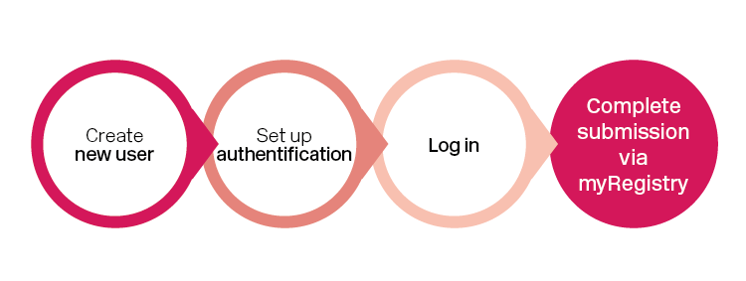
New users
Before you start you must have the following items ready:
| Email account | You will require access to an active email address. |
| Password |
You will need to create a memorable password that meets the following requirements:
|
| Authenticator phone app (optional) |
You can choose a third-party multi-factor authenticator for enhanced security. If you do not already have an authenticator and would like to use one, download the application to your smartphone via your usual app store (examples below). |
Authentication
Multi-factor authentication (MFA) offers enhanced security and ensures only you can access your data by using a second method of identification at the point of log in.
For ease, we offer several options of MFA to use when creating a new account and logging in:
- authenticator app - i.e. Authy, Microsoft Authenticator (available via your app store i.e. Google Play or Apple App Store)
- phone call
- text message
Setting up myRegistry for the first time
Step 1: access myRegistry
go to the Registry homepage or visit myRegistry
Step 2: start registration
- click login/register
- click sign up now
Step 3: enter your email
- type in your email address
- click send verification code
A 6-digit verification code will be sent to the email address you have entered (the email will be sent by ‘Microsoft on behalf of JFSC-B2C’).
Step 4: verify your email
- enter the code in the verification field
- click verify code
Step 5: create your account
- choose and confirm your password (minimum 10 characters, including at least one symbol and one capital letter)
- enter your First and Last name
- read and accept the terms and conditions
- click Create
Step 6: set up multi-factor authentication
- select your multifactor choice from the drop down and follow the on-screen instructions to setup
- options may include:
- text code to my phone
- receive phone call with code
- authenticator app
Step 6a: text code to my phone
- enter your mobile phone number
- a 6-digit verification code will be sent to the phone number you have entered
- enter the code in the verification field
- click continue
You should now be presented with the myRegistry homepage.
Step 6b: receive phone call with code
- enter your mobile phone number
- you will receive a phone call and be asked to press 6 on the keypad to receive your 6-digit verification code
- the code will be verbally communicated 3 times to the phone number you have entered
- enter the code in the verification field
- click continue
You should now be presented with the myRegistry homepage.
Step 6c: authentication app
- download an authentication app (e.g. Microsoft Authenticator) to your mobile device - or open one you already have installed
- using your mobile device, scan the QR Code presented to you in myRegistry
- enter the one-time passcode from the authenticator app into myRegistry
- click continue
You should now be presented with the myRegistry homepage.
Logging in to myRegistry
Once you have successfully created a myRegistry account you can log in anytime using your email, password and selected MFA option.
Steps for logging in
- Log in to myRegistry using your email (sign in name) and password
- Click sign In
- Select your multifactor choice
- Select continue
- Depending on your authentication option you may need to retrieve a 6 digit code from a text or WhatsApp message or open the authentication app on your phone and follow the steps instructed.
- Select continue
Once logged in, select the service you want:
- start a new submission – select the submission type or the entity you wish to update
- search the public register – by name or registration number
- portfolio – provides a list of all the entities you are nominated person for
- submissions – provides table of all submissions and their progress status
Forms and process guidance
Our forms page includes additional information on each service we offer and provides forms required for bespoke and non-digital services.
Return to the Registry homepage for quick links to popular actions.
Support and frequently asked questions (FAQs)
We are here to help
If you have not found what you need on the website, check the FAQs below.
For technical issues contact us via email. You should include screenshots of the error message or the process you are having issues with. Include as much detail as possible on the steps you have taken.
FAQs
I am having problems accessing myRegistry what should do
- check you are using the correct email and password, and do not have caps lock on
- navigate to myRegistry and select forgot your password?
- read our step-by-step process in the about guidance
I have forgotten my password what should I do?
- navigate to myRegistry and select forgot your password?
- follow the instructions provided
I have changed my phone /phone number and can no longer access myRegistry account
- contact the registry and confirm the email address that you use to log into myRegistry
- one of the team will arrange for your account to be update and take you through the process to log in
I work for a Trust company service provider (TCSP), should I apply for access via the myRegistry portal?
- contact your organisation’s lead administrator – they will need to create a user account for you via their myRegistry administrator account using your business email address
- use the sign up now link on myRegistry using the same business email address
I work for a TCSP but cannot see any clients – what should I do?
If your lead administrator created your user account, check with them to ensure:
- your email has been correctly added to the TCSP account
- the relevant entities have been assigned to your portfolio
If you created your own account independently:
- contact the Registry support team by phone or email
- we may need to archive your account so your administrator can follow the correct process and create your account properly
Are there any system requirements to access myRegistry?
- myRegistry is designed and tested to operate on the latest versions of Microsoft Edge, Google Chrome or Firefox
- myRegistry does not support Microsoft Internet Explorer
Can I use a paper form instead of myRegistry?
- we are a digital-first registry, offering efficient and streamlined processing to meet the needs of our customers
- we do not offer paper-based form alternatives for our digital submissions
- a small number of supplementary forms may be required to support some online submissions - these must be uploaded into myRegistry
Appointments
If you would like a face-to-face appointment, please contact our support team who will arrange a time that suits you during our office hours. Depending on your query, you may need to bring:
- photo identification
- a device which can access your email account (i.e. mobile phone or laptop)
- a device that can receive either text messages, WhatsApp or phone calls
- a device which has your chosen multifactor authenticator i.e. Microsoft Authenticator app
- company name or number (if applicable)