

Multi-factor authentication for myRegistry and myJFSC
To register/login to your customer account, you will need to use multi-factor authentication. This is required to protect your data.
As an existing user of my myJFSC or myRegistry you must login as normal with your usual login credentials.
If you are a new user you must follow the registration button on the home screen. Once you have verified your email address and set up your password follow the steps below.
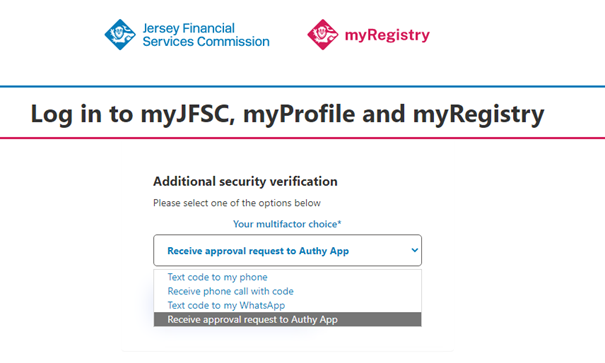
When you reach the multi-factor authentication screen you will now have the option to choose from one of four authentication method:
- Text code to my phone
- Receive phone call with code
- Text code to my WhatsApp
- Receive approval request to Authy App
Authenticator app
If you have selected to use an app you will need to download an authentication app to your device. You can download this from the App Store or Google Play store. We would recommend using Twilio Authy, Google Authenticator or Microsoft Authenticator.
Once you have signed up to you Authentication app, you must scan the QR code presented on the login portal screen (see below).
You must then click continue on the portal and enter the code provided on your authenticator app. click continue to be taken to the Welcome page.


Text code to my WhatsApp
If you have selected to receive a text code to your WhatsApp, click Continue and enter your mobile number. You will receive a six-digit code to your WhatsApp from Verify
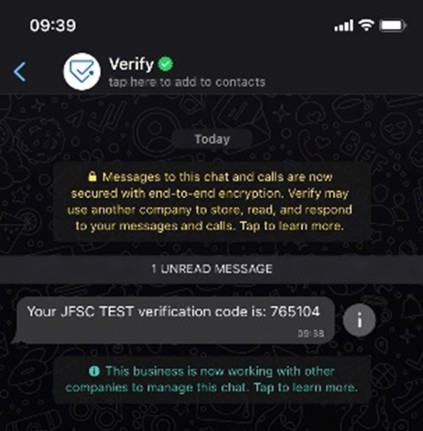
Enter the six-digit code and click Continue, you will be taken to the Welcome page
SMS code to my phone
If you have selected to receive an SMS text code to your mobile phone, click Continue and enter your mobile number. You will receive a six-digit code
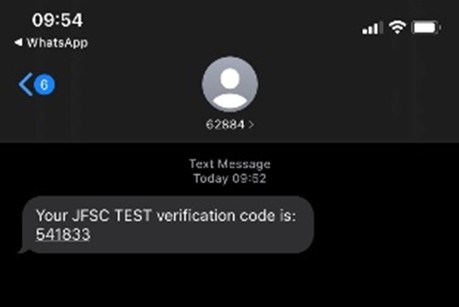
Enter the six-digit code and click Continue, you will be taken to the Welcome page
Phone call with voice code
If you have selected to receive a phone call with the code you will receive a phone call asking you to press 6 on the keypad to receive your six digit code. The code will then be repeated 3 times. Enter the code, click continue and you will be taken to the welcome page.